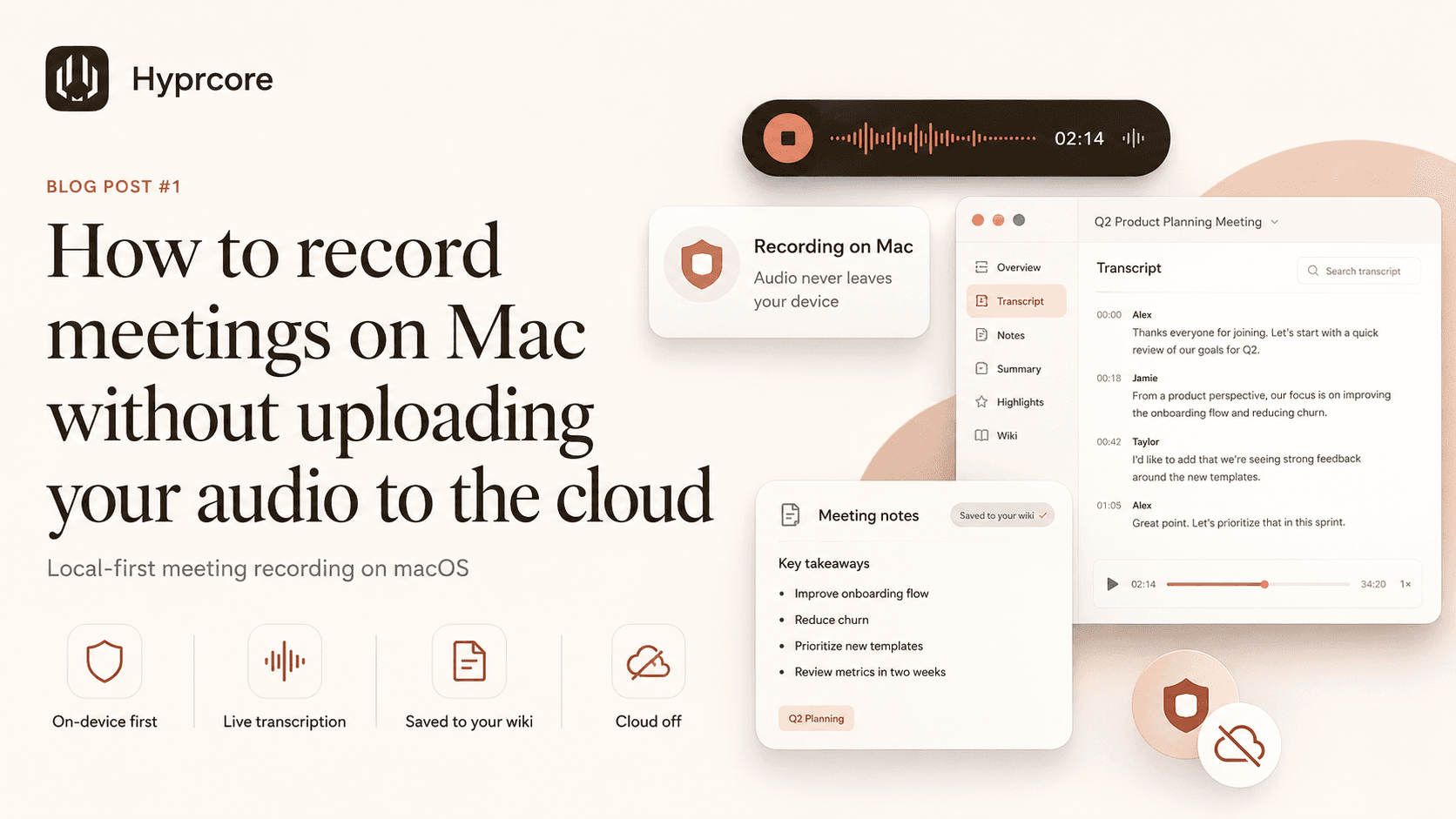
How to record meetings on Mac without uploading your audio to the cloud
Most AI meeting tools ship your audio to a vendor server before you see a word of transcript. Here is what "local-first meeting recording" actually means on macOS, why it matters, and how to set it up in five minutes.
You hit "join meeting" and a small pop-up appears: "Otter has joined the call." Or Fireflies. Or Read.ai. A few minutes later, your conversation is a row in a vendor database, processed on someone else's GPU, summarized by a model you cannot inspect, and stored under terms most people scroll past.
For a lot of meetings, that is fine. For a lot of others — board reviews, hiring debriefs, customer interviews, anything legal-adjacent — it is not. The default of "ship the audio first, ask questions later" makes meeting AI an awkward fit for most of the conversations that actually matter.
There is a better default available on the Mac. This guide is about how to use it.
What "local-first" actually means
The phrase gets thrown around. Here is the version that matters in practice:
- The audio is captured and processed on your Mac, not uploaded to a vendor server.
- The transcription model runs on your CPU or GPU, locally.
- The transcript is written to your disk, in a format you own (ideally markdown).
- Anything that does leave your machine — for example, an AI summary using a cloud model — is something you opt into for that step, not the default.
- If you decide to share the meeting with a teammate, that sync is end-to-end encrypted, not just "encrypted in transit."
The honest version: most "AI meeting" products fail one or more of these. Some upload first and process later. Some store transcripts on their servers indefinitely. Some technically encrypt sync but hold the keys. The differences are easy to gloss over and matter a lot.
Why on-device works on Apple silicon
Up until a few years ago, "local speech-to-text" meant slow, inaccurate, or both. Two things changed. First, OpenAI released Whisper as an open model, and the small variants got fast enough to run on a laptop. Second, Apple silicon shipped a Neural Engine and a unified-memory GPU that turned out to be very good at exactly this kind of inference.
On a modern Mac, you can run Whisper Large at faster-than-real-time speeds, with accuracy that competes with the best cloud APIs. NVIDIA Parakeet V3 is a more recent option that is sometimes quicker for live captions. The hardware is no longer the bottleneck. The bottleneck is software that bothers to use it.
What you need to record meetings privately
Three pieces:
- 01A Mac with Apple silicon (M1 or newer). Intel Macs work, but the speech models will be CPU-bound and slower.
- 02System audio capture. macOS does not let apps record other apps by default. You either install a virtual audio driver or use an app that ships its own (Hyprcore does — no kernel extensions, no driver to manage).
- 03A speech model that runs on your machine. Whisper variants are the most common. Parakeet V3 is a strong alternative. Avoid anything that requires an API key to transcribe.
If you want diarization — the labels that say "Speaker 1 said X, Speaker 2 said Y" — that requires a second model and is harder to do well on-device. It is solvable, but watch for tools that fake it by uploading to the cloud for "advanced features."
A five-minute setup with Hyprcore
This is the way we set it up. (We obviously make Hyprcore, so consider this a worked example with a bias. The general shape applies to any local-first tool.)
- 01Install Hyprcore from the download page. Builds are signed and notarized, so Gatekeeper opens them without warnings.
- 02On first launch, the onboarding shows a recording-notice screen before model selection. This is the explicit consent step — your meetings will be captured locally; it is up to you to make sure participants know.
- 03Pick a speech model. Whisper Turbo is a good default — fast, high-quality, runs comfortably on an M1. If you have an M2 or newer, Whisper Large is stronger. Parakeet V3 is faster for live captions.
- 04Grant microphone and screen recording permissions. Screen recording is required because that is how macOS exposes system audio to applications. The captured stream stays on your machine.
- 05Open any meeting — Zoom, Google Meet, Teams, FaceTime, anything that plays audio through your Mac — and hit the global shortcut to start recording. The floating recorder appears with a live transcript tab.
When the call ends, hit stop. The recorder collapses, post-processing runs locally, and the meeting becomes a wiki page in your sidebar with the full transcript, an AI-generated summary, and action items. The audio file and the markdown both live on your disk.
Sharing without giving up the keys
Most teams need to share meetings sometimes — a customer call with a teammate who could not attend, an interview with a hiring panel. The bar here is end-to-end encryption: the vendor (us, in this case, or whoever you pick) cannot read the meeting even if compelled to.
In Hyprcore, sync is opt-in per meeting. The audio and transcript encrypt with a key derived on your device before they leave your Mac. We hold ciphertext, not content. If you invite a teammate, the key wraps for them too. If you stop sharing, the wrapped key goes away.
The point is not that one product does this and others do not — it is that you should ask the question. "Where does the audio go, who can decrypt it, and how do I revoke access?" If a tool cannot answer that on its security page in three sentences, treat it like it cannot.
When you should still use a cloud meeting tool
Local-first is not a moral position. There are cases where shipping the audio is fine or even better:
- Meetings you would happily publish anyway (public webinars, recorded talks).
- Calls where the cloud tool is the meeting platform (you are not adding a third party — the audio is already there).
- Cases where you genuinely need the vendor's features, like real-time multi-language translation that is currently hard on-device.
The point is to make the choice consciously, instead of letting "the default" pick for you.
A short checklist
Before you trust a tool with your meetings, walk through this:
- 01Does the audio leave my machine before transcription? (If yes, it is not local-first.)
- 02Does the transcript live on my disk in a format I can open without the vendor app? (Markdown is the gold standard.)
- 03If the company disappeared tomorrow, would my meeting history be readable?
- 04Are AI features opt-in, or are they always-on?
- 05Is sync end-to-end encrypted, or just encrypted in transit?
- 06Can I see, in the settings, exactly which model is processing my audio?
You can answer those questions for any tool, including ours. We tried to make Hyprcore answer them honestly. Whatever you pick, ask.
If you want to try the workflow above, Hyprcore is free to download and runs natively on macOS and Windows. Pro plans add cloud sync for shared meetings, more local models, and the wiki search across every transcript. Either way, the audio starts and stays on your Mac.
More reading
Try Hyprcore
One workspace for the words you type, dictate, and record.
Native on Mac and Windows, local-first by default, and free to download.